Handling HTML Form Elements.

Almost in every web application, we inputs some values, Selects Options/Checkbox clicks on links/buttons etc through html elements and submit the page and save/retrieve values.

Today we will see how to interact with all these HTML elements (Web Controls).
WebDriver treats all those elements as a same that is WebElement.

below is the list of web controls and their HTML Syntax.


NameHTML SyntaxControl
Hyper Link
<a href="#">Link</a>
My Simple Link
Text Box
<input type="text" value="Some Text"/>
Password
<input type="password" value="somepass"/>
Multiline Textbox
<textarea>Firstline
Secondline
</textarea>
Checkbox
<input name="check1" type="checkbox"/>checkbox 1
       <input name="check2" type="checkbox"/>checkbox 2
checkbox 1   checkbox 2
Radio Button
<input name="options" type="radio" value="Option1" />Option 1
<input name="options" type="radio" value="Option2" />Option 2
Option 1   Option 2
Input Button
<input type="button" value="Click Me" id="myInpButton" />
Button
<button id="myButton">Click Me</button>
Submit Button
<input type="Submit" id="mySubmit" />
Combo Box
   <select>
      <option>Value 1</option>
      <option>Value 2</option>
      <option>Value 3</option>
   </select>
Multi Select ListBox
<select multiple="multiple" size="5">
   <option>Value 1</option>
   <option>Value 2</option>
   <option>Value 3</option>
   <option>Value 4</option>
   <option>Value 5</option>
</select>


Click Elements :

Below elements are generally used for Click interaction, also many time we need to verify element is enabled / disabled
  • Hyper Link
  • Input Button
  • Button
  • Submit Button
to click on all above controls we can use click() Method
to check the element is enabled we use isEnabled() Method
Check the below code
  WebDriver driver = new FirefoxDriver();
  driver.get("http://seleniumbyneeds.blogspot.in/2015/01/handling-various-html-form-elements.html");
  // Click on Button
  driver.findElement(By.id("button")).click();
  // Verify input button enabled if yes click on it
  if(driver.findElement(By.id("inpButton")).isEnabled()){
    driver.findElement(By.id("inpButton")).click();
  }
  // Click on link by selecting by link text
  driver.findElement(By.linkText("My Simple Link")).click();


Text Elements

Below elements used to enter text/numbers/words
  • Text Box
  • Password
  • Multiline Textbox
to enter the text, We use .sendKeys() Method with desired text as argument to read text from Multi line TextBox we use .getText() Method but to read the text from the TextBox & Password element we should use .getAttribute("value")
to clear the text from elements we can use clear()
please check below code
  WebDriver driver = new FirefoxDriver();
  driver.get("http://seleniumbyneeds.blogspot.in/2015/01/handling-various-html-form-elements.html");
  // Enter the text in text box
  driver.findElement(By.id("tbox")).sendKeys("Hello there");
  // print the text from text tbox
  System.out.println(driver.findElement(By.id("tbox")).getAttribute("value"));
  // enter the text in multi line text box
  driver.findElement(By.id("tarea")).sendKeys("here comes line 1\nhere comes line 2");
  // print the text from multi line text tbox
  System.out.println(driver.findElement(By.id("tarea")).getText());
  // Clear the password field
  driver.findElement(By.id("pass")).clear();


Selection Elements

Here in this category we get multiple options to select from them, below is the list of selection elements
  • Checkbox
  • Radio Button
  • Combo Box
  • Multi Select ListBox
to check or un-check the CheckBox we use click() Method.
to verify the CheckBox is checked we use .isSelected() Method

to select & verify selected Radio buttons, same methods are used

to select the specific option from Combo Box & Multi Select ListBox Selenium WebDriver provides Special class org.openqa.selenium.support.ui.Select
Below is code snippet which use to select single or multiple options.
WebDriver driver = new FirefoxDriver();
  driver.get("http://seleniumbyneeds.blogspot.in/2015/01/handling-various-html-form-elements.html");
  //Check the checkbox
  driver.findElement(By.name("check1")).click();
  //Check the checkbox 2 if it is not checked
  if(driver.findElement(By.name("check2")).isSelected()){
     driver.findElement(By.name("check2")).click();
  }
  // select the option Value 2 from combo box
  // 1. Convert WebElement to Select
  // 2. Select the desired option
  Select comboBox = new Select(driver.findElement(By.id("myCombo")));
  comboBox.selectByVisibleText("Value 2");
  //
  // Multi select from the list
  //
  Select listBox = new Select(driver.findElement(By.id("myCombo")));
  listBox.selectByVisibleText("Value 1");
  listBox.selectByVisibleText("Value 2");
  //
  // deselect the specific item
  //
  listBox.deselectByValue("Value 1");
  //
  // De-select all the items from the list 
  //
  listBox.deselectAll();

Select class also provide other useful methods to interact with List and combo
getFirstSelectedOption() returns the first selected element from the list
getAllSelectedOptions() returns List of WebElement which are selected

Note: Other then Visible text there are also methods available for index & value attribute


Keep Exploring... & Keep Automating......
Selecting Date on JQuery Datepicker

Hello Friends,

In this post we will see how to select specific date in JQuery Datepicker.

Its very easy to enter date as text by .sendKeys() method, but mostly when application uses JQuery Datepicker, it disables typing on the text-box. the text-box sets to read only.

While automating such screens we need to write logic which can interact with Datepicker and selects desired date.

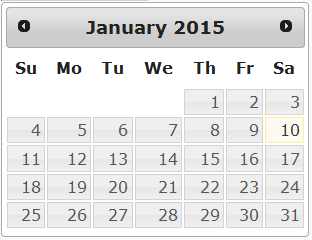
Consider below example of Datepicker.


Html code for above example is


To automate this, we first break apart a problem.
  1. Decide which date we want to set 
  2. Read the current date from datepicker 
  3. Calculate difference between both dates in Months(difference will positive in case of set date is in future respective to current date & will negative when set date is in past respective to current date of datepicker) 
  4. Set loop depends on month difference and navigate the datepicker to specific month 
  5. Select the Day. 

Lets implement the above logic.
Note: we have used Joda Date Time Library for calculate date and time difference
 
 SimpleDateFormat myDateFormat = new SimpleDateFormat("dd/MM/yyyy");
  SimpleDateFormat calDateFormat = new SimpleDateFormat("MMMM yyyy");
  Date setDate=myDateFormat.parse("15/08/2014");
  WebDriver driver = new FirefoxDriver();
  driver.get("http://seleniumbyneeds.blogspot.in/2015/01/selecting-date-on-jquery-datepicker.html");
  // Switch to frame where the Menu Example is loaded
  driver.switchTo().frame(driver.findElement(By.id("myFiddler"))).switchTo().frame(0);
  driver.findElement(By.id("datepicker")).click();
  Date curDate = calDateFormat.parse(driver.findElement(By.className("ui-datepicker-title")).getText());
  // Joda org.joda.time.Months class to calculate difference
  // to do this converted Date to joda DatTime
  int monthDiff = Months.monthsBetween(new DateTime(curDate).withDayOfMonth(1), new DateTime(setDate).withDayOfMonth(1)).getMonths();
  boolean isFuture = true;
  // decided whether set date is in past or future
		if(monthDiff<0){
			isFuture = false;
			monthDiff*=-1;
		}
		// iterate through month difference
		for(int i=1;i<=monthDiff;i++){
			driver.findElement(By.className("ui-datepicker-" + (isFuture?"next":"prev"))).click();
		}
		// Click on Day of Month from table
		driver.findElement(By.xpath("//table[@class='ui-datepicker-calendar']//a[text()='" + (new DateTime(setDate).getDayOfMonth()) + "']")).click();


Hope this will help you.... you can directly use above code if your application is using JQuery Datepicker. Keep automating......

Handling Dates in Java

Date is one of the Important Variable type in Java, Generally we use following actions with Dates while Automating the application

1) Read and Write date in Different Format

When we read date from browser, it is String type Variable. which is not suitable for perform date like operation. so that we need to convert the string to Date We can convert the string to date using SimpleDateFormat Below is different patterns used

LetterDescriptionExamples
yYear2013
MMonth in yearJuly, 07, 7
dDay in month1-31
EDay name in weekFriday, Sunday
aAm/pm markerAM, PM
HHour in day0-23
hHour in am/pm1-12
mMinute in hour0-60
sSecond in minute0-60
Note: If ‘M’ is 3 or more, then the month is interpreted as text, else number
Example 1:

 SimpleDateFormat formatter = new SimpleDateFormat("dd-MMM-yyyy");
 String dateString = "07-Jun-2013";
  try {
    Date date = formatter.parse(dateInString);
    System.out.println(date);
    System.out.println(formatter.format(date));
 } 
  catch (ParseException e) {
  e.printStackTrace();
 }
Output:
Fri Jun 07 00:00:00 MYT 2013
07-Jun-2013

in above case we have String dateString in format dd-MMM-yyyy, so to convert the String to Date in given format we have Created Object formatter of Class SimpleDateFormat.

This class provides various methods but for now out of that parse and format are important for us

  • parse Method takes String in argument and returns Date Object 
  • format Method takes Date in argument and returns formatted String
Example 2:

 
 SimpleDateFormat formatter = new SimpleDateFormat("dd-MM-yyyy");
 SimpleDateFormat parser = new SimpleDateFormat("dd/MMM/yyyy");
 String dateString = "31-10-2013";
  try {
    Date date = formatter.parse(dateInString);
    System.out.println(parser.format(date));
 } 
  catch (ParseException e) {
  e.printStackTrace();
 }
Output:
31/Oct/2013

In Example 2, we are converting the format of the given Date String by using separate SimpleDateFormat for parsing and formatting.


2) Compare Dates


To compare dates we use Date.compareTo(), this is the classic method to compare dates in Java. the method returns the results as follows.
  • Return value is 0 if both dates are equal.
  • Return value is greater than 0 , if Date is after the date argument.
  • Return value is less than 0, if Date is before the date argument.
 
try{
  SimpleDateFormat sdf = new SimpleDateFormat("yyyy-MM-dd");
  Date date1 = sdf.parse("2009-12-31");
  Date date2 = sdf.parse("2010-01-31");
  System.out.println(sdf.format(date1));
  System.out.println(sdf.format(date2));
  if(date1.compareTo(date2)>0){
    System.out.println("Date1 is after Date2");
  }else if(date1.compareTo(date2)<0){
    System.out.println("Date1 is before Date2");
  }else if(date1.compareTo(date2)==0){
    System.out.println("Date1 is equal to Date2");
  }else{
    System.out.println("How to get here?");
  }
  }catch(ParseException ex){
 ex.printStackTrace();
}

3) Find Difference between two dates


The best way to get difference between two dates is to get difference in milliseconds and convert them in to required format(days, hours, min, seconds)
  • 1000 milliseconds = 1 second
  • 60 seconds = 1 minute
  • 60 minutes = 1 hour
  • 24 hours = 1 day
I have tried explained in below example.

String dateStart = "01/14/2012 09:29:58";
String dateStop = "01/15/2012 10:31:48";
 
  //HH converts hour in 24 hours format (0-23), day calculation
SimpleDateFormat format = new SimpleDateFormat("MM/dd/yyyy HH:mm:ss");
 
Date d1 = null;
Date d2 = null;
 
try {
  d1 = format.parse(dateStart);
  d2 = format.parse(dateStop);
 
   //in milliseconds
  long diff = d2.getTime() - d1.getTime();
 
  long diffSeconds = diff / 1000 % 60;
  long diffMinutes = diff / (60 * 1000) % 60;
  long diffHours = diff / (60 * 60 * 1000) % 24;
  long diffDays = diff / (24 * 60 * 60 * 1000);
 
  System.out.print(diffDays + " days, ");
  System.out.print(diffHours + " hours, ");
  System.out.print(diffMinutes + " minutes, ");
  System.out.print(diffSeconds + " seconds.");
 
}
catch (Exception e)
{
  e.printStackTrace();
}

hope this will help you some where....

Keep Automating..

Using Actions Class to perform user actions


Hello Friends....

Today we will see how to handle series of events with Selenium WebDriver.

Now you will have question What is Series of events or actions and Where do I need while automating the application?

Have a look in below menu, having 2 Levels of sub menu. 
below is the source HTML of the page

<ul class="top">
    <li><a href="#">Menu1</a></li>
    <li><a href="#">Menu2 >></a>
        <ul class="sub">
            <li><a href="#">SubMenu1</a></li>
            <li> <a href="#">SubMenu2 >></a>

                <ul class="sub">
                    <li><a target="_blank" href="http://www.google.com">Link to Google</a>
                    </li>
                    <li><a href="http://facebook.com">Link to Facebook</a>

                    </li>
                </ul>
            </li>
            <li><a href="#">SubMenu3</a>

            </li>
        </ul>
    </li>
    <li><a href="#">Menu3</a>
    </li>
</ul>


I want to click on menu Menu2 >> SubMenu2 >> Link to Google

if we execute below code.

    /*** 
     *Initializing WebDriver to FirefoxDriver
    ***/
    WebDriver driver = new FirefoxDriver();
    driver.get("http://seleniumbyneeds.blogspot.in/2015/01/using-actions-to-hover-on-menu.html");
     
    // Switch to frame where the Menu Example is loaded
    driver.switchTo().frame(driver.findElement(By.id("myFiddler"))).switchTo().frame(0);
    
//Clicking in Link
driver.findElement(By.partialLinkText("Google")).click();


By executing above code we will get below error message. Because link to Google is not directly visible.

Caused by: org.openqa.selenium.NoSuchElementException: Unable to locate element: {"method":"partial link text","selector":"Google"} 

to get the link visible we need 2 actions
  • Hover on Menu2, which will display SubMenu2  
  • Hover on SubMenu2, which will expose or display Link to Google
  • and after that we click on link to Google
 to simulate all above actions we will need Actions, this class provides lot of user actions and gestures which simulates the user interactions and events.

see below code which uses Actions class to perform above mentioned actions to click on Google Link

  WebDriver driver = new FirefoxDriver();
  driver.get("http://seleniumbyneeds.blogspot.in/2015/01/using-actions-to-hover-on-menu.html");

// Switch to frame where the Menu Example is loaded
  driver.switchTo().frame(driver.findElement(By.id("myFiddler"))).switchTo().frame(0);
 
//initializing object from Class org.openqa.selenium.interactions.Actions
 Actions myActionBuilder = new Actions(driver);
//hover on Menu2
  myActionBuilder.moveToElement(driver.findElement(By.partialLinkText("Menu2"))).build().perform();
//hover on SubMenu2
  myActionBuilder.moveToElement(driver.findElement(By.partialLinkText("SubMenu2"))).build().perform();
//click on link
  myActionBuilder.moveToElement(driver.findElement(By.partialLinkText("Google"))).click().build().perform();


Here in this example we have used moveToElement action, which triggers the hover event on the given WebElement.


Now lets see drag and drop example in Actions


Have a look in below Example, in this we need to drag first block to second block

below is the html source of the example.
to perform drag and drop operation we will need below code.

  WebDriver driver = new FirefoxDriver();
  driver.get("http://seleniumbyneeds.blogspot.in/2015/01/using-actions-to-hover-on-menu.html");
  driver.switchTo().frame(driver.findElement(By.id("myDragFiddler"))).switchTo().frame(0);
  Actions myActionBuilder = new Actions(driver);
  myActionBuilder.dragAndDrop(driver.findElement(By.id("draggable")), driver.findElement(By.id("droppable"))).build().perform();

Like above both examples we can do lot of actions with Actions class, just play around and explore the things.


Keep Automating.....

Selenium WebDriver WebElement Selectors

Hello friends.. 

This would be very besic topic for experianced people, but may help WebDriver new bees.

Basically whenever we interacting with Browser Application through WebDriver, we always need to identify the web-elements like Text-Box, Buttons, List, Dropdown, Menu, Link, Checkbox.. etc.
        We use FindWebElement / FindWebElements method to locate/find Web-Elements, with different selectors.
        But I will also like to mention here that as a Web-Application Tester, we should have basic knowledge of HTML & CSS, which definitely help us to take judgement on selectors to find the Web-Elements. 

Please go through below links to learn HTML / CSS

HTML Tutorials

CSS Tutorials

Below is the list of selectors provided by WebDriver.
  • By.className
  • By.cssSelector
  • By.id 
  • By.linkText
  • By.name
  • By.partialLinkText
  • By.tagName
  • By.xpath


Today i am going to explain some of the listed selectors.

By.className

              This Method takes Class Name as String and Finds elements based on the value of the "class" attribute of the web element. 
If an element has many classes then this will match against each of them. 

For example if the value is "one two onone", then the following "className"  will match: "one" and "two" 
Have a look at below html snippet which may present on any Web Page


<div class="displaydiv"> <div class="boldText">My List Items</div> <ul> <li> <div class="boldText listItem">First Item</div> </li> <li> <div class="boldText listItem">Second Item</div> </li> <li> <div class="boldText listItem">Third Item</div> </li> <li> <div class="boldText listItem">Fourth Item</div> </li> <li> <div class="boldText listItem">Fifth Item</div> </li> </ul> </div>  If we want to select all list items from the list, by using ByClassName Selector, we should use class "listItem" because "bolderText" class is also applied to List header. 

So in this case our WebDriver selector statement will look as follow 

1 List<WebElement> listItems = driver.findElements(By.className("listItem"));

By.cssSelector

While using CssSelector we should know basics of Cascaded Style Sheets.
Please go through below links to learn HTML / CSS

HTML Tutorials

CSS Tutorials


Let's have some basics on the css.
  •     .(dot) is used for selecting the elemnts having the specified css class
  •     #(hash) is used for selecting the element having specified Id
  •     we can directly add Tag Name to select all the specified tags in the web page.
so for above given example we are selecting element by class name so our selector statement will be
   
1 List<WebElement> listItems = driver.findElements(By.cssSelector(".listItem"));
   
we can also use below syntax if we have the single list in whole web page

1 List<WebElement> listItems = driver.findElements(By.cssSelector("li div"));

here selector finds div whch are chield of li directly by tag name of web element


By.id &By.name

These two selectors are quite simple and straight forward as they are.  
By.id selector selects the element having specified id and similarly By.name selectors selects the web element having specified name. 


By.linkText

This Selector used to select the anchors(Links) from the web-page.
It selects the link on the basis of the text contains by the link. consider below HTML snippet

<div> <a id='myLink' href='http://www.google.com'> Link to Google</a><br/> <a id='myLink' href='http://www.yahoo.com'> Link to Yahoo</a><br/> <a id='myLink' href='http://www.rediff.com'> Link to Rediff</a> </div>

above code will render on web-page like below


Now to click the link of www.yahoo.com with linkText selector below statement needed 

1 driver.findElement(By.linkText("Link to Yahoo")).click();


By.partialLinkText

As selector name it self suggests, it can select the Anchors(Links) by it's partial text.
lets consider previous HTML snippet, if i want to select any link with partialLinkText selector, I need to give partial text of the link, check below snippet which will select the www.google.com link

1 driver.findElement(By.partialLinkText("Google")).click();


if I write below statement.

1 driver.findElement(By.partialLinkText("Link")).click();

it will point to all links, as all links are having text "Link", but as we are using .findWebElement  so it will point to first link in DOM, that is link to www.google.com


By.tagName

continued....


Best way to produce Logs in Selenium WebDriver

Hello Friends
While coding, it is very tedious task to create Log for each statement, although it is very helpful while digging the failures.
Logs are also very helpful for detailed investigation of failures and Exceptions. Recently, someone asked how to have Selenium Web-driver create Log if an exception is thrown. Here is how you do it
Normally you use following code to initializing Web-Driver
WebDriver driver;
driver= new InternetExplorerDriver();

You need to Slightly Modify your Code as below
WebDriver driver;
WebDriverEventListner eventListner = new MyEventListner();
driver = new EventFiringWebDriver(new InternetExplorerDriver()).register(eventListner);

And you need to add MyEventListener Class in your project and below is the the code of MyEventListener.java
import org.openqa.selenium.By;
import org.openqa.selenium.WebDriver;
import org.openqa.selenium.WebElement;
import org.openqa.selenium.support.events.WebDriverEventListener;

public class MyEventListener implements WebDriverEventListener {
  public void beforeNavigateTo(String url, WebDriver driver) {
     // TODO Auto-generated method stub
  }
  public void afterNavigateTo(String url, WebDriver driver) {
    // TODO Auto-generated method stub
  }
  public void beforeNavigateBack(WebDriver driver) {
       // TODO Auto-generated method stub
  }
  public void afterNavigateBack(WebDriver driver) {
       // TODO Auto-generated method stub
  }
  public void beforeNavigateForward(WebDriver driver) {
       // TODO Auto-generated method stub
  }
  public void afterNavigateForward(WebDriver driver) {
       // TODO Auto-generated method stub
  }
  public void beforeFindBy(By by, WebElement element, WebDriver driver) {
       // TODO Auto-generated method stub
  }
  public void afterFindBy(By by, WebElement element, WebDriver driver) {
       // TODO Auto-generated method stub
  }
  public void beforeClickOn(WebElement element, WebDriver driver) {
       // TODO Auto-generated method stub
  }
  public void afterClickOn(WebElement element, WebDriver driver) {
       // TODO Auto-generated method stub
  }
  public void beforeChangeValueOf(WebElement element, WebDriver driver) {
       // TODO Auto-generated method stub
  }
  public void afterChangeValueOf(WebElement element, WebDriver driver) {
       // TODO Auto-generated method stub
  }
  public void beforeScript(String script, WebDriver driver) {
       // TODO Auto-generated method stub
  }
  public void afterScript(String script, WebDriver driver) {
       // TODO Auto-generated method stub
  }
  public void onException(Throwable throwable, WebDriver driver) {
       // TODO Auto-generated method stub
  }
}

This is it..... now just add the code for logging for events which you want to.... and will create the log automatically

And to take Screen shot on Each Exception you can add your screen shot code in Method onException();

Be happy... Keep Automating....

How to Handle PROXY Settings in Selenium WebDriver.

Hello friends..
Most of the time when we create any webdriver automation code using public websites like Google, Facebook, Yahoo... etc, which works very well at our home pc but not at office.
This may have various reasons. One of the reason is PROXY at your office network.
A proxy or proxy server is basically another computer which serves as a hub through which internet requests are processed. By connecting through one of these servers, your computer sends your requests to the proxy server which then processes your request and returns what you were wanting.

In this way it serves as an intermediary between your home machine and the rest of the computers on the internet. Proxies are used for a number of reasons such as to filter web content, to go around restrictions such as parental blocks, to screen downloads and uploads and to provide anonymity when surfing the internet.
To work your browser under proxy you may need below settings.

Internet Explorer Proxy Settings

  • Click Tools
  • Click Internet Options
  • Click the Connections Tab
  • Click LAN settings
  • Check the “Use a proxy server for your LAN” box
  • Enter the IP Address of the Proxy Server and the Port Number
  • Click OK

FireFox Proxy Settings

  • Click the FireFox Button(The button in the upper left corner)
  • Click Options
  • Click Options in the new tab
  • Click the Advanced Tab
  • Click Settings
  • Click Manual Proxy Settings
  • In the HTTP Proxy Box enter the IP Address of the proxy server and the Port number
  • Click OK

Google Chrome Proxy Settings

  • Click the Customize and Control Button(Button with the wrench picture in upper right corner
  • Click Under the Hood
  • Click Change proxy settings
  • Click LAN Settings
  • Check the “Use a proxy server for your LAN” box
  • Enter the IP Address of the Proxy Server and the Port Number
  • Click OK

Safari Proxy Settings

  • Click Safari
  • Click Preferences
  • Click Advanced
  • Click Change Settings
  • Check the Web Proxy(HTTP) box
  • Enter the IP Address of the Proxy Server and the Port Number
  • Click Apply Now

While launching Browser by Selenium WebDriver these settings are initialized or reset. we need to add some additional code to tell WebDriver about the Proxy setting.
below code snippet is Example of setting proxy server to localhost and port 8080 for InternetExpolrerDriver. This could be apply to any WebDriver.
String PROXY = "localhost:8080";

org.openqa.selenium.Proxy proxy = new org.openqa.selenium.Proxy();
proxy.setHttpProxy(PROXY)
     .setFtpProxy(PROXY)
     .setSslProxy(PROXY);
DesiredCapabilities cap = new DesiredCapabilities();
cap.setCapability(CapabilityType.PROXY, proxy);

WebDriver driver = new InternetExplorerDriver(cap);

Many times your Network allow to set Proxy to Auto Detect mode. Below code explains how you can set the WebDriver to Auto Detect Proxy
org.openqa.selenium.Proxy proxy = new org.openqa.selenium.Proxy();
proxy.setAutodetect(true);

DesiredCapabilities cap = new DesiredCapabilities();
cap.setCapability(CapabilityType.PROXY, proxy);
WebDriver driver = new FirefoxDriver(cap);

Keep Automating..........