Showing posts with label junit. Show all posts

All about Cucumber for Selenium

There is a term Behavior Driven Development (BDD) (Read more),
Cucumber is framework which facilitate BDD in your development environment.
In most of the software organization there are various collaborative groups, we as a tester comes in technology group, which closely work with various software technologies and understand most of the software terminologies.
But there are many group which are closely working with business, and may not have much insight of software technology/terminology in spite of that most of the software development requirements come from this group.
Those requirements are basically the required behavior of the software which they describe in the form of various business scenarios.
Consider you are assigned to create Funds Transfer module in a Net Banking application.
There may below scenarios to develop/Test
  • Fund Transfer should take place if there is enough balance in source account
  • Fund Transfer should take place if the destination a/c details are correct
  • Fund Transfer should take place if transaction password / rsa code / security authentication for the transaction entered by user us correct
  • Fund Transfer should take place even if it's a Bank Holiday
  • Fund Transfer should take place on a future date as set by the account holder
Now technology team would start to code to fulfill the scenarios, and we as a tester, test it against given scenarios and further automate those with various tools like selenium.
If we code our test in TestNG like frameworks, we could have many tests, and respective results for those test.
But here we miss the mapping of the business scenarios and automated test.
OK if I could create some document to map tests with scenarios it would be extra activity and having chances to miss some of them as we always do :)
Here comes Cucumber, which helps you to write Scenario in plain formatted English and bind them to your automated tests.
Cucumber provides you way to write you business scenarios in standard format as below
Given I am accessing it with proper authentication
When I shall transfer with enough balance in my source account
Or I shall transfer on a Bank Holiday
Or I shall transfer on a future date
And destination a/c details are correct
And transaction password/rsa code / security authentication for the transaction is correct
And press or click send button
Then amount must be transferred
And the event will be logged in log file
isn't is more meaningful and easy to read and understand? it is as good as writing document for the given module.
Let's start to implement Cucumber for our Selenium based tests.
  • Create a Maven Project.
  • add below dependencies in you pom.xml
 <dependency>
    <groupId>org.seleniumhq.selenium</groupId>
    <artifactId>selenium-java</artifactId>
    <version>RELEASE</version>
</dependency>

<dependency>
    <groupId>io.cucumber</groupId>
    <artifactId>cucumber-java</artifactId>
    <version>RELEASE</version>
</dependency>
<dependency>
    <groupId>io.cucumber</groupId>
    <artifactId>cucumber-junit</artifactId>
    <version>RELEASE</version>
</dependency>
<dependency>
    <groupId>junit</groupId>
    <artifactId>junit</artifactId>
    <version>RELEASE</version>
</dependency>
Now lets start the actual coding,
To make it simple add 2 separate packages in our source, one for Cucumber scenarios and other for Java bindings for scenarios.
Bindings for Cucumber scenarios are also called as Glue Code as it works as glue in between your Software Automation & English like Scenarios
Lets write a scenario for login the application http://seleniumbyneeds.github.io/resources/e2
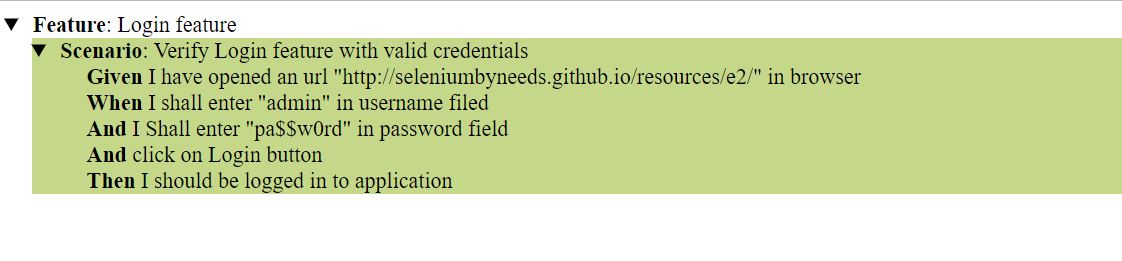
Create file "LoginFeature.feature" in package "scenarios" and add below lines in the file.
Feature: Login feature

Scenario: Verify Login feature with valid credentials
Given I have opened an url "http://seleniumbyneeds.github.io/resources/e2/" in browser
When I shall enter "admin" in username filed
And I Shall enter "pa$$w0rd" in password field
And click on Login button
Then I should be logged in to application
As scenario is itself descriptive enough to understand, here we are fetching the url and adding username & password to login.
Let's create glue-code for this feature. add "LoginFeature.java" class in package "glue". add below code in the file. please change the package name as per your project setup.
 

import cucumber.api.java.en.And;
import cucumber.api.java.en.Given;
import cucumber.api.java.en.Then;
import cucumber.api.java.en.When;
import org.junit.Assert;
import org.openqa.selenium.By;
import org.openqa.selenium.WebDriver;
import org.openqa.selenium.chrome.ChromeDriver;

import java.util.concurrent.TimeUnit;

public class LoginFeature {
    WebDriver driver;
    @Given("I have opened an url {string} in browser")
    public void iHaveOpenedAnUrlInBrowser(String url) {
// running the test in chrome browser, you can choose your favorite or required
        System.setProperty("webdriver.chrome.driver","");
        driver = new ChromeDriver();
        driver.manage().timeouts().implicitlyWait(10, TimeUnit.SECONDS);
        driver.get(url);
    }

    @When("I shall enter {string} in username filed")
    public void iShallEnterInUsernameFiled(String userName) {
        driver.findElement(By.xpath("//input[@id='user']")).sendKeys(userName);
    }

    @And("I Shall enter {string} in password field")
    public void iShallEnterInPasswordField(String password) {
        driver.findElement(By.xpath("//input[@id='password']")).sendKeys(password);
    }

    @And("click on Login button")
    public void clickOnLoginButton() {
        driver.findElement(By.xpath("//input[@id='login']")).click();
    }

    @Then("I should be logged in to application")
    public void iShouldBeLoggedInToApplication() {
        if(driver.findElements(By.xpath("//a[@id='logoutLink']")).size()==0){
            Assert.fail("not logged in");
        }
    }
}

We are almost done... only thing remain is to add a runner class as Cucumber needs Junit runner to run the scenarios/Scenario.
Add class name "Runner.java" and add below code in that.
 
import cucumber.api.CucumberOptions;
import cucumber.api.junit.Cucumber;
import org.junit.runner.RunWith;

@RunWith(Cucumber.class )
@CucumberOptions(features = "src\\test\\java\\features",
        glue = "glue")
public class CucumberRunner {
}

now run the above test runner file. it will run your feature and show results on a console.
You can pass various option in @CucumberOptions as per you requirement. below are some of the important options.

Pretty:

it helps to create various report for the cucumber features, in below example it will create HTML report at given location
 

@CucumberOptions(
features = "src\\test\\java\\features",
glue = {"glue"},
plugin = { "pretty", "html:target/cucumber-reports" },
)


This will generate an HTML report at the location mentioned in the option
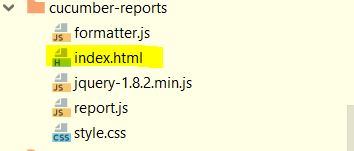
cucmberfiles
HTML Report:
cucmberreport
You can also generate JSON or JUNIT xml report by adding option in cucumber options
Or you can generate all report all together
 
@CucumberOptions(
 features = "src/test/resources/functionalTests",
 glue= {"stepDefinitions"},
 plugin = { "pretty", "json:target/cucumber-reports/Cucumber.json",
 "junit:target/cucumber-reports/Cucumber.xml",
 "html:target/cucumber-reports"}
)

There are still many options features available in cucumber framework. I will try to write on some in coming blog-posts.
Till that time keep Automating..........

Rerun Failed JUnit Tests

Hello Friends,
Many times Selenium tests are getting failed due to no reason... as UI tests are fragile in nature.
There are many uncertainties like slow response, browser issues... and many more.

Generally we use readily available Test frameworks like JUnit & TestNG to write test cases. TestNG framework has lot off cool features like rerun test, dependency test and many more... but still many of us have JUnit as first choice.

Problem!!!!

JUnit frame work does not provide any direct feature to rerun the failed tests. So problem is

How we can rerun Failed test in JUnit?


Solution

JUnit provides a Interface TestRule, by implementing this we can apply rule for running the test. We have used same class to solve our problem, Please have a look below code snippet in which have created Class Retry which implements the TestRule interface.
import org.junit.rules.TestRule;
import org.junit.runner.Description;
import org.junit.runners.model.Statement;

/**
 * Created by Kirtesh on 20-02-2015.
 */
public class Retry implements TestRule {
    private int retryCount;

    public Retry(int retryCount) {
        this.retryCount = retryCount;
    }

    public Statement apply(Statement base, Description description) {
        return statement(base, description);
    }
    private Statement statement(final Statement base, final Description description) {
        return new Statement() {
            @Override
            public void evaluate() throws Throwable {
                Throwable caughtThrowable = null;

                // implement retry logic here
                for (int i = 0; i < retryCount; i++) {
                    try {
                        base.evaluate();
                        return;
                    } catch (Throwable t) {
                        caughtThrowable = t;

                        //  System.out.println(": run " + (i+1) + " failed");
                        System.err.println(description.getDisplayName() + ": run " + (i + 1) + " failed");
                    }
                }
                System.err.println(description.getDisplayName() + ": giving up after " + retryCount + " failures");
                throw caughtThrowable;
            }
        };
    }
}

That's it.. you can directly copy above class & use this rule in your junit test... look in to below test
    @Rule public Retry retry = new Retry(3);
    @Test
    public void myWebDriverTest(){
 driver.get(htmlPath);
 driver.findElement(By.id("user")).sendKeys("MyUser");
 driver.findElement(By.id("password")).sendKeys("myPassword");
 driver.findElement(By.id("login")).click();
 Assert.assertTrue(driver.findElements(By.linkText("Logout")).size()>0);
        driver.quit();
    }
above test will get rerun if it get fails for 3 time, 3 is the number which you can set in @Rule Retry...

Hope this may hep you.....

Keep exploring... Keep automating....

Running Tests with Apache Ant

Hello friends,

Today we will see, how we can run our unit tests with Apache Ant.

before that.... Why we need this?

It's Very bulky to run your test from various Java class within various packages through IDE (Eclipse, Intellij-Idea), specially when it is daily activity. Its also become very important when you want to integrate your tests in CI process (Continuous Integration). it means your test will get trigged after each build.

Here Ant helps us to run the test in a single click or one command

ANT is software build automating tool for Java code. It uses XML file named build.xml as the input, and run accordingly.

We can configure different Unit test framework like J-UNIT & Test-NG in Apache Ant

Lets get started step by step

  1. The very first step is to Download and install Apache Ant. You can download latest Apache Ant form here

    Its very simple to install, just uncompress it on hard drive and add the System Variable as "ANT_HOME" to the directory you uncompressed Ant. also add %ANT_HOME%/bin to your PATH variable.

    Please check this to learn how to set System variable

  2. As I mentioned build.xml file is input for Ant, Lets see how we can create this file

    Very basic duild.xml file template is as below. We will start with this

    <?xml version="1.0"?>
      <project name="Services Automation" default="test">
        <target name="test">
            <echo>Hello Ant</echo>
        </target>
    </project>
    

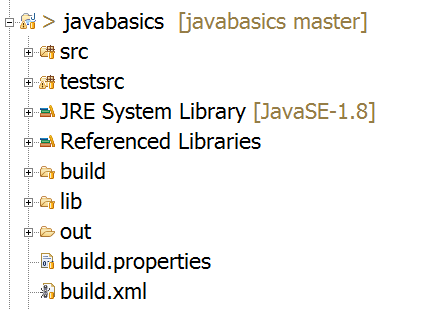
    Create new build.xml file at root level of your test project. below is my project structure

    There are two source folders in my Project(src, testsrc), you may have different project structure

  3. build.xml has project tag on root level which consist of target nodes, these are one or many as per requirement. each target has unique name attribute, in our case it is "test".

    Project tag has default attribute having value from any of the target name attribute. by this we can set the default target to execute

    Lets get in to detail.. Which steps we need to take for executing unit test?

    1. Create the folder structure we needed
    2. Compile the Java code which we have written for build the tests
    3. Create jar file from compiled code, which will used for executing tests
    4. Run the desired test
    5. Create the test Report

    Lets Implement all above steps in build.xml file

  4. First Step is to create/Initialize the folder structure, we need to add target named init in project and create required folders, please look below target

    <target name="clean" >
     <mkdir dir="out"/>
     <mkdir dir="reports"/>
     <mkdir dir="out"/>
     <mkdir dir="build"/>
     <delete verbose="true">
      <fileset dir="out" includes="**/*.class" />
      <fileset dir="build" includes="**/*.*" />
      <fileset dir="reports" includes="**/*.*" />
     </delete>
    </target>
    

    Here mkdir used for creating the directory at relative path & delete used for deleting the existing files

  5. Now our next target will be, Compile the code.

    to compile the code, all dependency jars should available in lib folder, and used as reference for compile

    in ant we use javac tag to compile the source to make binary class files. We use path tag to store dependency class-paths

    Please have a look in below target of javac

    <path id="classpath.test">
     <pathelement location="lib/junit-4.11.jar" />
     <pathelement location="lib/hamcrest-core-1.3.jar" />
     <pathelement location="src" />
    </path>
    <target name="compile" depends="clean">
     <javac srcdir="src" destdir="out" verbose="true">
      <classpath refid="classpath.test"/>
     </javac>
     <jar destfile="build/myJar.jar" basedir="out">
     </jar>
    </target>
    

    We use jar tag to make the jar from compiled binaries.

  6. Now we have jar file ready in build folder & we are all set to run the tests, we use junit tag to run the test please have a look in to below bit of xml

    <path id="junitTest">
     <pathelement location="build/myJar.jar"/>
     <pathelement location="lib/junit-4.11.jar" />
     <pathelement location="lib/hamcrest-core-1.3.jar" />
    </path>
    <target name="test" depends="compile">
     <junit showoutput="true">
      <classpath refid="junitTest" />
      <formatter type="xml" usefile="true"/>
      <batchtest todir="reports">
       <fileset dir="source">
        <include name="**/*Test*" />
       </fileset>
      </batchtest>
     </junit>
    </target>
    
  7. We are done with test execution target. and time is to build reports. in above junit target we have already stored our raw xml out put in reports folder through formatter.

    to generate HTML report we use junitreport tag with inputs. please look into below xml snippet

    <target name="report" depends="test">
     <mkdir dir="reports/html" />
     <junitreport todir="reports">
      <fileset dir="reports">
       <include name="TEST-*.xml" />
      </fileset>
      <report todir="reports/html" />
     </junitreport>
    </target>
    
  8. Finally we done with all target and ready to run the test through command prompt or integrate the test to CI environment. before that just look at whole build.xml file

<?xml version="1.0"?>
<project name="Services Automation" default="test">

 <target name="clean" >
  <mkdir dir="out"/>
  <mkdir dir="reports"/>
  <mkdir dir="out"/>
  <mkdir dir="build"/>
  <delete verbose="true">
   <fileset dir="out" includes="**/*.class" />
   <fileset dir="build" includes="**/*.*" />
   <fileset dir="reports" includes="**/*.*" />
  </delete>
 </target>


 <path id="classpath.test">
  <pathelement location="lib/junit-4.11.jar" />
  <pathelement location="lib/hamcrest-core-1.3.jar" />
  <pathelement location="src" />
 </path>
 <target name="compile" depends="clean">
  <javac srcdir="src" destdir="out" verbose="true">
   <classpath refid="classpath.test"/>
  </javac>
  <jar destfile="build/myJar.jar" basedir="out">
  </jar>
 </target>

 <path id="junitTest">
  <pathelement location="build/myJar.jar"/>
  <pathelement location="lib/junit-4.11.jar" />
  <pathelement location="lib/hamcrest-core-1.3.jar" />
 </path>
 <target name="test" depends="compile">
  <junit showoutput="true">
   <classpath refid="junitTest" />
   <formatter type="xml" usefile="true"/>
   <batchtest todir="reports">
    <fileset dir="source">
     <include name="**/*Test*" />
    </fileset>
   </batchtest>
  </junit>
 </target>

 <target name="report" depends="test">
  <mkdir dir="reports/html" />
  <junitreport todir="reports">
   <fileset dir="reports">
    <include name="TEST-*.xml" />
   </fileset>
   <report todir="reports/html" />
  </junitreport>
 </target>

</project>

Here we Go...............
To run the test... open command prompt to the root folder of your project where build.xml is saved and just type command ant and you are done.......

Note above build.xml file is written as per shown project structure. it may vary as if on different project and structures.


Keep Automating.............