Showing posts with label Automation. Show all posts

All about Cucumber for Selenium

There is a term Behavior Driven Development (BDD) (Read more),
Cucumber is framework which facilitate BDD in your development environment.
In most of the software organization there are various collaborative groups, we as a tester comes in technology group, which closely work with various software technologies and understand most of the software terminologies.
But there are many group which are closely working with business, and may not have much insight of software technology/terminology in spite of that most of the software development requirements come from this group.
Those requirements are basically the required behavior of the software which they describe in the form of various business scenarios.
Consider you are assigned to create Funds Transfer module in a Net Banking application.
There may below scenarios to develop/Test
  • Fund Transfer should take place if there is enough balance in source account
  • Fund Transfer should take place if the destination a/c details are correct
  • Fund Transfer should take place if transaction password / rsa code / security authentication for the transaction entered by user us correct
  • Fund Transfer should take place even if it's a Bank Holiday
  • Fund Transfer should take place on a future date as set by the account holder
Now technology team would start to code to fulfill the scenarios, and we as a tester, test it against given scenarios and further automate those with various tools like selenium.
If we code our test in TestNG like frameworks, we could have many tests, and respective results for those test.
But here we miss the mapping of the business scenarios and automated test.
OK if I could create some document to map tests with scenarios it would be extra activity and having chances to miss some of them as we always do :)
Here comes Cucumber, which helps you to write Scenario in plain formatted English and bind them to your automated tests.
Cucumber provides you way to write you business scenarios in standard format as below
Given I am accessing it with proper authentication
When I shall transfer with enough balance in my source account
Or I shall transfer on a Bank Holiday
Or I shall transfer on a future date
And destination a/c details are correct
And transaction password/rsa code / security authentication for the transaction is correct
And press or click send button
Then amount must be transferred
And the event will be logged in log file
isn't is more meaningful and easy to read and understand? it is as good as writing document for the given module.
Let's start to implement Cucumber for our Selenium based tests.
  • Create a Maven Project.
  • add below dependencies in you pom.xml
 <dependency>
    <groupId>org.seleniumhq.selenium</groupId>
    <artifactId>selenium-java</artifactId>
    <version>RELEASE</version>
</dependency>

<dependency>
    <groupId>io.cucumber</groupId>
    <artifactId>cucumber-java</artifactId>
    <version>RELEASE</version>
</dependency>
<dependency>
    <groupId>io.cucumber</groupId>
    <artifactId>cucumber-junit</artifactId>
    <version>RELEASE</version>
</dependency>
<dependency>
    <groupId>junit</groupId>
    <artifactId>junit</artifactId>
    <version>RELEASE</version>
</dependency>
Now lets start the actual coding,
To make it simple add 2 separate packages in our source, one for Cucumber scenarios and other for Java bindings for scenarios.
Bindings for Cucumber scenarios are also called as Glue Code as it works as glue in between your Software Automation & English like Scenarios
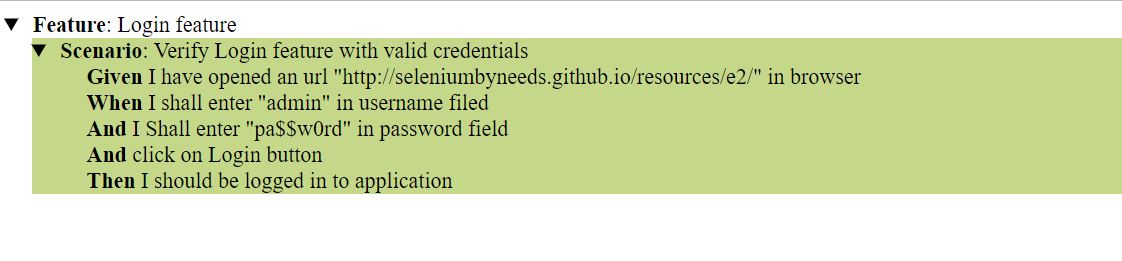
Lets write a scenario for login the application http://seleniumbyneeds.github.io/resources/e2
Create file "LoginFeature.feature" in package "scenarios" and add below lines in the file.
Feature: Login feature

Scenario: Verify Login feature with valid credentials
Given I have opened an url "http://seleniumbyneeds.github.io/resources/e2/" in browser
When I shall enter "admin" in username filed
And I Shall enter "pa$$w0rd" in password field
And click on Login button
Then I should be logged in to application
As scenario is itself descriptive enough to understand, here we are fetching the url and adding username & password to login.
Let's create glue-code for this feature. add "LoginFeature.java" class in package "glue". add below code in the file. please change the package name as per your project setup.
 

import cucumber.api.java.en.And;
import cucumber.api.java.en.Given;
import cucumber.api.java.en.Then;
import cucumber.api.java.en.When;
import org.junit.Assert;
import org.openqa.selenium.By;
import org.openqa.selenium.WebDriver;
import org.openqa.selenium.chrome.ChromeDriver;

import java.util.concurrent.TimeUnit;

public class LoginFeature {
    WebDriver driver;
    @Given("I have opened an url {string} in browser")
    public void iHaveOpenedAnUrlInBrowser(String url) {
// running the test in chrome browser, you can choose your favorite or required
        System.setProperty("webdriver.chrome.driver","");
        driver = new ChromeDriver();
        driver.manage().timeouts().implicitlyWait(10, TimeUnit.SECONDS);
        driver.get(url);
    }

    @When("I shall enter {string} in username filed")
    public void iShallEnterInUsernameFiled(String userName) {
        driver.findElement(By.xpath("//input[@id='user']")).sendKeys(userName);
    }

    @And("I Shall enter {string} in password field")
    public void iShallEnterInPasswordField(String password) {
        driver.findElement(By.xpath("//input[@id='password']")).sendKeys(password);
    }

    @And("click on Login button")
    public void clickOnLoginButton() {
        driver.findElement(By.xpath("//input[@id='login']")).click();
    }

    @Then("I should be logged in to application")
    public void iShouldBeLoggedInToApplication() {
        if(driver.findElements(By.xpath("//a[@id='logoutLink']")).size()==0){
            Assert.fail("not logged in");
        }
    }
}

We are almost done... only thing remain is to add a runner class as Cucumber needs Junit runner to run the scenarios/Scenario.
Add class name "Runner.java" and add below code in that.
 
import cucumber.api.CucumberOptions;
import cucumber.api.junit.Cucumber;
import org.junit.runner.RunWith;

@RunWith(Cucumber.class )
@CucumberOptions(features = "src\\test\\java\\features",
        glue = "glue")
public class CucumberRunner {
}

now run the above test runner file. it will run your feature and show results on a console.
You can pass various option in @CucumberOptions as per you requirement. below are some of the important options.

Pretty:

it helps to create various report for the cucumber features, in below example it will create HTML report at given location
 

@CucumberOptions(
features = "src\\test\\java\\features",
glue = {"glue"},
plugin = { "pretty", "html:target/cucumber-reports" },
)


This will generate an HTML report at the location mentioned in the option
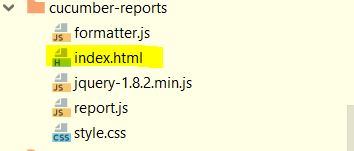
cucmberfiles
HTML Report:
cucmberreport
You can also generate JSON or JUNIT xml report by adding option in cucumber options
Or you can generate all report all together
 
@CucumberOptions(
 features = "src/test/resources/functionalTests",
 glue= {"stepDefinitions"},
 plugin = { "pretty", "json:target/cucumber-reports/Cucumber.json",
 "junit:target/cucumber-reports/Cucumber.xml",
 "html:target/cucumber-reports"}
)

There are still many options features available in cucumber framework. I will try to write on some in coming blog-posts.
Till that time keep Automating..........

Wait for Pop-up

In recent past, I encountered one scenario where you need to automate pop-up in the application. I am blogging this, as many of you may have faced the same issue.
You need to automate the below scenario. There is a link present on the Web-page, Pop-up gets opened as you click on the link & perform some action on this pop-up.
Now you may wonder what's the big deal in just automating above scenario.
I also thought in the same way but my scripts were failing.
After investigation I found that when I tried to switch to pop up it was not there,meaning till that time pop up didn't get open.
I tried to apply Thread.Sleep ,it worked fine for me. But again using Thread.Sleep can cause many issues like -
  1. This may fail if opening a pop up takes longer time
  2. If pop up gets open up in fraction of seconds then it will be waste of time.
  3. It is not the good practice to use Thread.Sleep and be last option we should think of when synchronize the browser.
There is no direct solution or Expected condition available in Selenium WebDriver for this issue. Hence to overcome all these problems I have written a method which implements new Expected condition and exactly behaves like implicit wait.

 
private void clickWaitForPopoUp(WebDriver driver, By by,int waitTime) {
        final int currentWindows = driver.getWindowHandles().size();
        driver.findElement(by).click();
        WebDriverWait wait = new WebDriverWait(driver, waitTime);
        wait.until(new ExpectedCondition<Boolean>() {
            public Boolean apply(WebDriver d) {
                return (d.getWindowHandles().size() != currentWindows);
            }
        });
    }

Now I am calling above method and passing link and wait time when want to click and popup....


Keep automating......

Find Broken Images in Web-Page

Broken Images

Hello Friends....
While testing the web-page, It always happen when page renders properly but Image/Images are not displayed due to incorrect path
Technically images which are not having correct path are called as Broken Images.
Basically Selenium help us to mimic human actions (e.g. clicking, typing, dragging, dropping, etc.)
So how do we use it to test for broken images?

Solution!!!

Selenium WebDriver is not directly equipped with this... but there are several way to do this..
We will use HttpURLConnection Object with selenium to do this.We will need to go through the below steps.

  1. Find all images on the page
  2. Iterate through each image, and find the src attribute and validate with a 404 status code
  3. Store / Notify / Log the broken images path in a collection

HttpURLConnection Example

Please look into below code snippet
import java.net.HttpURLConnection;
import java.net.InetSocketAddress;
import java.net.Proxy;
import java.net.URL;
import java.util.ArrayList;
import java.util.List;

import org.openqa.selenium.By;
import org.openqa.selenium.WebDriver;
import org.openqa.selenium.WebElement;
import org.openqa.selenium.firefox.FirefoxDriver;

public class ImageUtills {
 
 public static List<WebElement> getBrokenLinks(String Weburl) {
  WebDriver driver = new FirefoxDriver();
  driver.get(Weburl);
  List<WebElement> Images = driver.findElements(By.xpath("//img"));
  List<WebElement> brokenImages = new ArrayList<WebElement>();
  
  //Use Proxy if your network is under any proxy server
  Proxy proxy = new Proxy(Proxy.Type.HTTP, new InetSocketAddress("Your Proxy Server", 80));
  for(WebElement image:Images){
   String url= image.getAttribute("src");
   try 
   {
    //You can keep empty if there is no proxy.
    HttpURLConnection http = (HttpURLConnection)new URL(url).openConnection(proxy);
    if(http.getResponseCode()!=200){
     brokenImages.add(image);
    }
   
   } 
   catch (Exception e) {
    brokenImages.add(image);
    e.printStackTrace();
   } 
  }
  
  /// You can further use brokenImages List for display or notify or assert
  return brokenImages;
  
 }

}

Below is Different Response codes and there meanings.. it may help you some where

1xx: Information

Message: Description:
100 Continue The server has received the request headers, and the client should proceed to send the request body
101 Switching Protocols The requester has asked the server to switch protocols
103 Checkpoint Used in the resumable requests proposal to resume aborted PUT or POST requests

2xx: Successful

Message: Description:
200 OK The request is OK (this is the standard response for successful HTTP requests)
201 Created The request has been fulfilled, and a new resource is created
202 Accepted The request has been accepted for processing, but the processing has not been completed
203 Non-Authoritative Information The request has been successfully processed, but is returning information that may be from another source
204 No Content The request has been successfully processed, but is not returning any content
205 Reset Content The request has been successfully processed, but is not returning any content, and requires that the requester reset the document view
206 Partial Content The server is delivering only part of the resource due to a range header sent by the client

3xx: Redirection

Message: Description:
300 Multiple Choices A link list. The user can select a link and go to that location. Maximum five addresses
301 Moved Permanently The requested page has moved to a new URL
302 Found The requested page has moved temporarily to a new URL
303 See Other The requested page can be found under a different URL
304 Not Modified Indicates the requested page has not been modified since last requested
306 Switch Proxy No longer used
307 Temporary Redirect The requested page has moved temporarily to a new URL
308 Resume Incomplete Used in the resumable requests proposal to resume aborted PUT or POST requests

4xx: Client Error

Message: Description:
400 Bad Request The request cannot be fulfilled due to bad syntax
401 Unauthorized The request was a legal request, but the server is refusing to respond to it. For use when authentication is possible but has failed or not yet been provided
402 Payment Required Reserved for future use
403 Forbidden The request was a legal request, but the server is refusing to respond to it
404 Not Found The requested page could not be found but may be available again in the future
405 Method Not Allowed A request was made of a page using a request method not supported by that page
406 Not Acceptable The server can only generate a response that is not accepted by the client
407 Proxy Authentication Required The client must first authenticate itself with the proxy
408 Request Timeout The server timed out waiting for the request
409 Conflict The request could not be completed because of a conflict in the request
410 Gone The requested page is no longer available
411 Length Required The "Content-Length" is not defined. The server will not accept the request without it
412 Precondition Failed The precondition given in the request evaluated to false by the server
413 Request Entity Too Large The server will not accept the request, because the request entity is too large
414 Request-URI Too Long The server will not accept the request, because the URL is too long. Occurs when you convert a POST request to a GET request with a long query information
415 Unsupported Media Type The server will not accept the request, because the media type is not supported
416 Requested Range Not Satisfiable The client has asked for a portion of the file, but the server cannot supply that portion
417 Expectation Failed The server cannot meet the requirements of the Expect request-header field

5xx: Server Error

Message: Description:
500 Internal Server Error A generic error message, given when no more specific message is suitable
501 Not Implemented The server either does not recognize the request method, or it lacks the ability to fulfill the request
502 Bad Gateway The server was acting as a gateway or proxy and received an invalid response from the upstream server
503 Service Unavailable The server is currently unavailable (overloaded or down)
504 Gateway Timeout The server was acting as a gateway or proxy and did not receive a timely response from the upstream server
505 HTTP Version Not Supported The server does not support the HTTP protocol version used in the request
511 Network Authentication Required The client needs to authenticate to gain network access

Hope you learn something from this post...


Keep Automating........

Running Tests with Apache Ant

Hello friends,

Today we will see, how we can run our unit tests with Apache Ant.

before that.... Why we need this?

It's Very bulky to run your test from various Java class within various packages through IDE (Eclipse, Intellij-Idea), specially when it is daily activity. Its also become very important when you want to integrate your tests in CI process (Continuous Integration). it means your test will get trigged after each build.

Here Ant helps us to run the test in a single click or one command

ANT is software build automating tool for Java code. It uses XML file named build.xml as the input, and run accordingly.

We can configure different Unit test framework like J-UNIT & Test-NG in Apache Ant

Lets get started step by step

  1. The very first step is to Download and install Apache Ant. You can download latest Apache Ant form here

    Its very simple to install, just uncompress it on hard drive and add the System Variable as "ANT_HOME" to the directory you uncompressed Ant. also add %ANT_HOME%/bin to your PATH variable.

    Please check this to learn how to set System variable

  2. As I mentioned build.xml file is input for Ant, Lets see how we can create this file

    Very basic duild.xml file template is as below. We will start with this

    <?xml version="1.0"?>
      <project name="Services Automation" default="test">
        <target name="test">
            <echo>Hello Ant</echo>
        </target>
    </project>
    

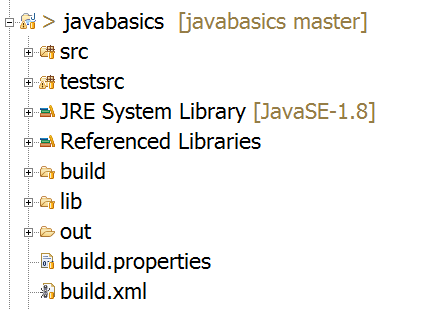
    Create new build.xml file at root level of your test project. below is my project structure

    There are two source folders in my Project(src, testsrc), you may have different project structure

  3. build.xml has project tag on root level which consist of target nodes, these are one or many as per requirement. each target has unique name attribute, in our case it is "test".

    Project tag has default attribute having value from any of the target name attribute. by this we can set the default target to execute

    Lets get in to detail.. Which steps we need to take for executing unit test?

    1. Create the folder structure we needed
    2. Compile the Java code which we have written for build the tests
    3. Create jar file from compiled code, which will used for executing tests
    4. Run the desired test
    5. Create the test Report

    Lets Implement all above steps in build.xml file

  4. First Step is to create/Initialize the folder structure, we need to add target named init in project and create required folders, please look below target

    <target name="clean" >
     <mkdir dir="out"/>
     <mkdir dir="reports"/>
     <mkdir dir="out"/>
     <mkdir dir="build"/>
     <delete verbose="true">
      <fileset dir="out" includes="**/*.class" />
      <fileset dir="build" includes="**/*.*" />
      <fileset dir="reports" includes="**/*.*" />
     </delete>
    </target>
    

    Here mkdir used for creating the directory at relative path & delete used for deleting the existing files

  5. Now our next target will be, Compile the code.

    to compile the code, all dependency jars should available in lib folder, and used as reference for compile

    in ant we use javac tag to compile the source to make binary class files. We use path tag to store dependency class-paths

    Please have a look in below target of javac

    <path id="classpath.test">
     <pathelement location="lib/junit-4.11.jar" />
     <pathelement location="lib/hamcrest-core-1.3.jar" />
     <pathelement location="src" />
    </path>
    <target name="compile" depends="clean">
     <javac srcdir="src" destdir="out" verbose="true">
      <classpath refid="classpath.test"/>
     </javac>
     <jar destfile="build/myJar.jar" basedir="out">
     </jar>
    </target>
    

    We use jar tag to make the jar from compiled binaries.

  6. Now we have jar file ready in build folder & we are all set to run the tests, we use junit tag to run the test please have a look in to below bit of xml

    <path id="junitTest">
     <pathelement location="build/myJar.jar"/>
     <pathelement location="lib/junit-4.11.jar" />
     <pathelement location="lib/hamcrest-core-1.3.jar" />
    </path>
    <target name="test" depends="compile">
     <junit showoutput="true">
      <classpath refid="junitTest" />
      <formatter type="xml" usefile="true"/>
      <batchtest todir="reports">
       <fileset dir="source">
        <include name="**/*Test*" />
       </fileset>
      </batchtest>
     </junit>
    </target>
    
  7. We are done with test execution target. and time is to build reports. in above junit target we have already stored our raw xml out put in reports folder through formatter.

    to generate HTML report we use junitreport tag with inputs. please look into below xml snippet

    <target name="report" depends="test">
     <mkdir dir="reports/html" />
     <junitreport todir="reports">
      <fileset dir="reports">
       <include name="TEST-*.xml" />
      </fileset>
      <report todir="reports/html" />
     </junitreport>
    </target>
    
  8. Finally we done with all target and ready to run the test through command prompt or integrate the test to CI environment. before that just look at whole build.xml file

<?xml version="1.0"?>
<project name="Services Automation" default="test">

 <target name="clean" >
  <mkdir dir="out"/>
  <mkdir dir="reports"/>
  <mkdir dir="out"/>
  <mkdir dir="build"/>
  <delete verbose="true">
   <fileset dir="out" includes="**/*.class" />
   <fileset dir="build" includes="**/*.*" />
   <fileset dir="reports" includes="**/*.*" />
  </delete>
 </target>


 <path id="classpath.test">
  <pathelement location="lib/junit-4.11.jar" />
  <pathelement location="lib/hamcrest-core-1.3.jar" />
  <pathelement location="src" />
 </path>
 <target name="compile" depends="clean">
  <javac srcdir="src" destdir="out" verbose="true">
   <classpath refid="classpath.test"/>
  </javac>
  <jar destfile="build/myJar.jar" basedir="out">
  </jar>
 </target>

 <path id="junitTest">
  <pathelement location="build/myJar.jar"/>
  <pathelement location="lib/junit-4.11.jar" />
  <pathelement location="lib/hamcrest-core-1.3.jar" />
 </path>
 <target name="test" depends="compile">
  <junit showoutput="true">
   <classpath refid="junitTest" />
   <formatter type="xml" usefile="true"/>
   <batchtest todir="reports">
    <fileset dir="source">
     <include name="**/*Test*" />
    </fileset>
   </batchtest>
  </junit>
 </target>

 <target name="report" depends="test">
  <mkdir dir="reports/html" />
  <junitreport todir="reports">
   <fileset dir="reports">
    <include name="TEST-*.xml" />
   </fileset>
   <report todir="reports/html" />
  </junitreport>
 </target>

</project>

Here we Go...............
To run the test... open command prompt to the root folder of your project where build.xml is saved and just type command ant and you are done.......

Note above build.xml file is written as per shown project structure. it may vary as if on different project and structures.


Keep Automating.............

Handling HTML Form Elements.

Almost in every web application, we inputs some values, Selects Options/Checkbox clicks on links/buttons etc through html elements and submit the page and save/retrieve values.

Today we will see how to interact with all these HTML elements (Web Controls).
WebDriver treats all those elements as a same that is WebElement.

below is the list of web controls and their HTML Syntax.


NameHTML SyntaxControl
Hyper Link
<a href="#">Link</a>
My Simple Link
Text Box
<input type="text" value="Some Text"/>
Password
<input type="password" value="somepass"/>
Multiline Textbox
<textarea>Firstline
Secondline
</textarea>
Checkbox
<input name="check1" type="checkbox"/>checkbox 1
       <input name="check2" type="checkbox"/>checkbox 2
checkbox 1   checkbox 2
Radio Button
<input name="options" type="radio" value="Option1" />Option 1
<input name="options" type="radio" value="Option2" />Option 2
Option 1   Option 2
Input Button
<input type="button" value="Click Me" id="myInpButton" />
Button
<button id="myButton">Click Me</button>
Submit Button
<input type="Submit" id="mySubmit" />
Combo Box
   <select>
      <option>Value 1</option>
      <option>Value 2</option>
      <option>Value 3</option>
   </select>
Multi Select ListBox
<select multiple="multiple" size="5">
   <option>Value 1</option>
   <option>Value 2</option>
   <option>Value 3</option>
   <option>Value 4</option>
   <option>Value 5</option>
</select>


Click Elements :

Below elements are generally used for Click interaction, also many time we need to verify element is enabled / disabled
  • Hyper Link
  • Input Button
  • Button
  • Submit Button
to click on all above controls we can use click() Method
to check the element is enabled we use isEnabled() Method
Check the below code
  WebDriver driver = new FirefoxDriver();
  driver.get("http://seleniumbyneeds.blogspot.in/2015/01/handling-various-html-form-elements.html");
  // Click on Button
  driver.findElement(By.id("button")).click();
  // Verify input button enabled if yes click on it
  if(driver.findElement(By.id("inpButton")).isEnabled()){
    driver.findElement(By.id("inpButton")).click();
  }
  // Click on link by selecting by link text
  driver.findElement(By.linkText("My Simple Link")).click();


Text Elements

Below elements used to enter text/numbers/words
  • Text Box
  • Password
  • Multiline Textbox
to enter the text, We use .sendKeys() Method with desired text as argument to read text from Multi line TextBox we use .getText() Method but to read the text from the TextBox & Password element we should use .getAttribute("value")
to clear the text from elements we can use clear()
please check below code
  WebDriver driver = new FirefoxDriver();
  driver.get("http://seleniumbyneeds.blogspot.in/2015/01/handling-various-html-form-elements.html");
  // Enter the text in text box
  driver.findElement(By.id("tbox")).sendKeys("Hello there");
  // print the text from text tbox
  System.out.println(driver.findElement(By.id("tbox")).getAttribute("value"));
  // enter the text in multi line text box
  driver.findElement(By.id("tarea")).sendKeys("here comes line 1\nhere comes line 2");
  // print the text from multi line text tbox
  System.out.println(driver.findElement(By.id("tarea")).getText());
  // Clear the password field
  driver.findElement(By.id("pass")).clear();


Selection Elements

Here in this category we get multiple options to select from them, below is the list of selection elements
  • Checkbox
  • Radio Button
  • Combo Box
  • Multi Select ListBox
to check or un-check the CheckBox we use click() Method.
to verify the CheckBox is checked we use .isSelected() Method

to select & verify selected Radio buttons, same methods are used

to select the specific option from Combo Box & Multi Select ListBox Selenium WebDriver provides Special class org.openqa.selenium.support.ui.Select
Below is code snippet which use to select single or multiple options.
WebDriver driver = new FirefoxDriver();
  driver.get("http://seleniumbyneeds.blogspot.in/2015/01/handling-various-html-form-elements.html");
  //Check the checkbox
  driver.findElement(By.name("check1")).click();
  //Check the checkbox 2 if it is not checked
  if(driver.findElement(By.name("check2")).isSelected()){
     driver.findElement(By.name("check2")).click();
  }
  // select the option Value 2 from combo box
  // 1. Convert WebElement to Select
  // 2. Select the desired option
  Select comboBox = new Select(driver.findElement(By.id("myCombo")));
  comboBox.selectByVisibleText("Value 2");
  //
  // Multi select from the list
  //
  Select listBox = new Select(driver.findElement(By.id("myCombo")));
  listBox.selectByVisibleText("Value 1");
  listBox.selectByVisibleText("Value 2");
  //
  // deselect the specific item
  //
  listBox.deselectByValue("Value 1");
  //
  // De-select all the items from the list 
  //
  listBox.deselectAll();

Select class also provide other useful methods to interact with List and combo
getFirstSelectedOption() returns the first selected element from the list
getAllSelectedOptions() returns List of WebElement which are selected

Note: Other then Visible text there are also methods available for index & value attribute


Keep Exploring... & Keep Automating......

Selecting Date on JQuery Datepicker

Hello Friends,

In this post we will see how to select specific date in JQuery Datepicker.

Its very easy to enter date as text by .sendKeys() method, but mostly when application uses JQuery Datepicker, it disables typing on the text-box. the text-box sets to read only.

While automating such screens we need to write logic which can interact with Datepicker and selects desired date.

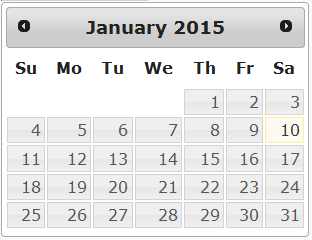
Consider below example of Datepicker.


Html code for above example is


To automate this, we first break apart a problem.
  1. Decide which date we want to set 
  2. Read the current date from datepicker 
  3. Calculate difference between both dates in Months(difference will positive in case of set date is in future respective to current date & will negative when set date is in past respective to current date of datepicker) 
  4. Set loop depends on month difference and navigate the datepicker to specific month 
  5. Select the Day. 

Lets implement the above logic.
Note: we have used Joda Date Time Library for calculate date and time difference
 
 SimpleDateFormat myDateFormat = new SimpleDateFormat("dd/MM/yyyy");
  SimpleDateFormat calDateFormat = new SimpleDateFormat("MMMM yyyy");
  Date setDate=myDateFormat.parse("15/08/2014");
  WebDriver driver = new FirefoxDriver();
  driver.get("http://seleniumbyneeds.blogspot.in/2015/01/selecting-date-on-jquery-datepicker.html");
  // Switch to frame where the Menu Example is loaded
  driver.switchTo().frame(driver.findElement(By.id("myFiddler"))).switchTo().frame(0);
  driver.findElement(By.id("datepicker")).click();
  Date curDate = calDateFormat.parse(driver.findElement(By.className("ui-datepicker-title")).getText());
  // Joda org.joda.time.Months class to calculate difference
  // to do this converted Date to joda DatTime
  int monthDiff = Months.monthsBetween(new DateTime(curDate).withDayOfMonth(1), new DateTime(setDate).withDayOfMonth(1)).getMonths();
  boolean isFuture = true;
  // decided whether set date is in past or future
		if(monthDiff<0){
			isFuture = false;
			monthDiff*=-1;
		}
		// iterate through month difference
		for(int i=1;i<=monthDiff;i++){
			driver.findElement(By.className("ui-datepicker-" + (isFuture?"next":"prev"))).click();
		}
		// Click on Day of Month from table
		driver.findElement(By.xpath("//table[@class='ui-datepicker-calendar']//a[text()='" + (new DateTime(setDate).getDayOfMonth()) + "']")).click();


Hope this will help you.... you can directly use above code if your application is using JQuery Datepicker. Keep automating......

Selenium WebDriver WebElement Selectors

Hello friends.. 

This would be very besic topic for experianced people, but may help WebDriver new bees.

Basically whenever we interacting with Browser Application through WebDriver, we always need to identify the web-elements like Text-Box, Buttons, List, Dropdown, Menu, Link, Checkbox.. etc.
        We use FindWebElement / FindWebElements method to locate/find Web-Elements, with different selectors.
        But I will also like to mention here that as a Web-Application Tester, we should have basic knowledge of HTML & CSS, which definitely help us to take judgement on selectors to find the Web-Elements. 

Please go through below links to learn HTML / CSS

HTML Tutorials

CSS Tutorials

Below is the list of selectors provided by WebDriver.
  • By.className
  • By.cssSelector
  • By.id 
  • By.linkText
  • By.name
  • By.partialLinkText
  • By.tagName
  • By.xpath


Today i am going to explain some of the listed selectors.

By.className

              This Method takes Class Name as String and Finds elements based on the value of the "class" attribute of the web element. 
If an element has many classes then this will match against each of them. 

For example if the value is "one two onone", then the following "className"  will match: "one" and "two" 
Have a look at below html snippet which may present on any Web Page


<div class="displaydiv"> <div class="boldText">My List Items</div> <ul> <li> <div class="boldText listItem">First Item</div> </li> <li> <div class="boldText listItem">Second Item</div> </li> <li> <div class="boldText listItem">Third Item</div> </li> <li> <div class="boldText listItem">Fourth Item</div> </li> <li> <div class="boldText listItem">Fifth Item</div> </li> </ul> </div>  If we want to select all list items from the list, by using ByClassName Selector, we should use class "listItem" because "bolderText" class is also applied to List header. 

So in this case our WebDriver selector statement will look as follow 

1 List<WebElement> listItems = driver.findElements(By.className("listItem"));

By.cssSelector

While using CssSelector we should know basics of Cascaded Style Sheets.
Please go through below links to learn HTML / CSS

HTML Tutorials

CSS Tutorials


Let's have some basics on the css.
  •     .(dot) is used for selecting the elemnts having the specified css class
  •     #(hash) is used for selecting the element having specified Id
  •     we can directly add Tag Name to select all the specified tags in the web page.
so for above given example we are selecting element by class name so our selector statement will be
   
1 List<WebElement> listItems = driver.findElements(By.cssSelector(".listItem"));
   
we can also use below syntax if we have the single list in whole web page

1 List<WebElement> listItems = driver.findElements(By.cssSelector("li div"));

here selector finds div whch are chield of li directly by tag name of web element


By.id &By.name

These two selectors are quite simple and straight forward as they are.  
By.id selector selects the element having specified id and similarly By.name selectors selects the web element having specified name. 


By.linkText

This Selector used to select the anchors(Links) from the web-page.
It selects the link on the basis of the text contains by the link. consider below HTML snippet

<div> <a id='myLink' href='http://www.google.com'> Link to Google</a><br/> <a id='myLink' href='http://www.yahoo.com'> Link to Yahoo</a><br/> <a id='myLink' href='http://www.rediff.com'> Link to Rediff</a> </div>

above code will render on web-page like below


Now to click the link of www.yahoo.com with linkText selector below statement needed 

1 driver.findElement(By.linkText("Link to Yahoo")).click();


By.partialLinkText

As selector name it self suggests, it can select the Anchors(Links) by it's partial text.
lets consider previous HTML snippet, if i want to select any link with partialLinkText selector, I need to give partial text of the link, check below snippet which will select the www.google.com link

1 driver.findElement(By.partialLinkText("Google")).click();


if I write below statement.

1 driver.findElement(By.partialLinkText("Link")).click();

it will point to all links, as all links are having text "Link", but as we are using .findWebElement  so it will point to first link in DOM, that is link to www.google.com


By.tagName

continued....